How to increase FPS in Agario: settings and tips
To increase FPS in Agario, start with the graphics: turn off skins, the grid, sectors and soft cells, then enable food hiding when zoomed out. These options reduce drawing work and visual calculations. They can make the game smoother on a low-end PC or phone, although the result depends on your device, browser and the action on the arena.
This guide covers the browser version of Agario — Blogar and uses its English setting names. Other Agar.io versions may offer different options. There is no fixed FPS gain to promise: first establish whether you have a rendering problem or a connection delay.
How to increase FPS in Agario: quick settings
- Open the game menu and press Game settings.
- Uncheck Skins, Grid, Sectors and Soft cells.
- Enable Hide food when zoomed out.
- Keep FPS and Ping enabled to distinguish frame rate from connection delay. Server load is useful for troubleshooting too.
- Return to the game and compare a similar area of the arena. If it feels smoother, restore the visual features you want one at a time.
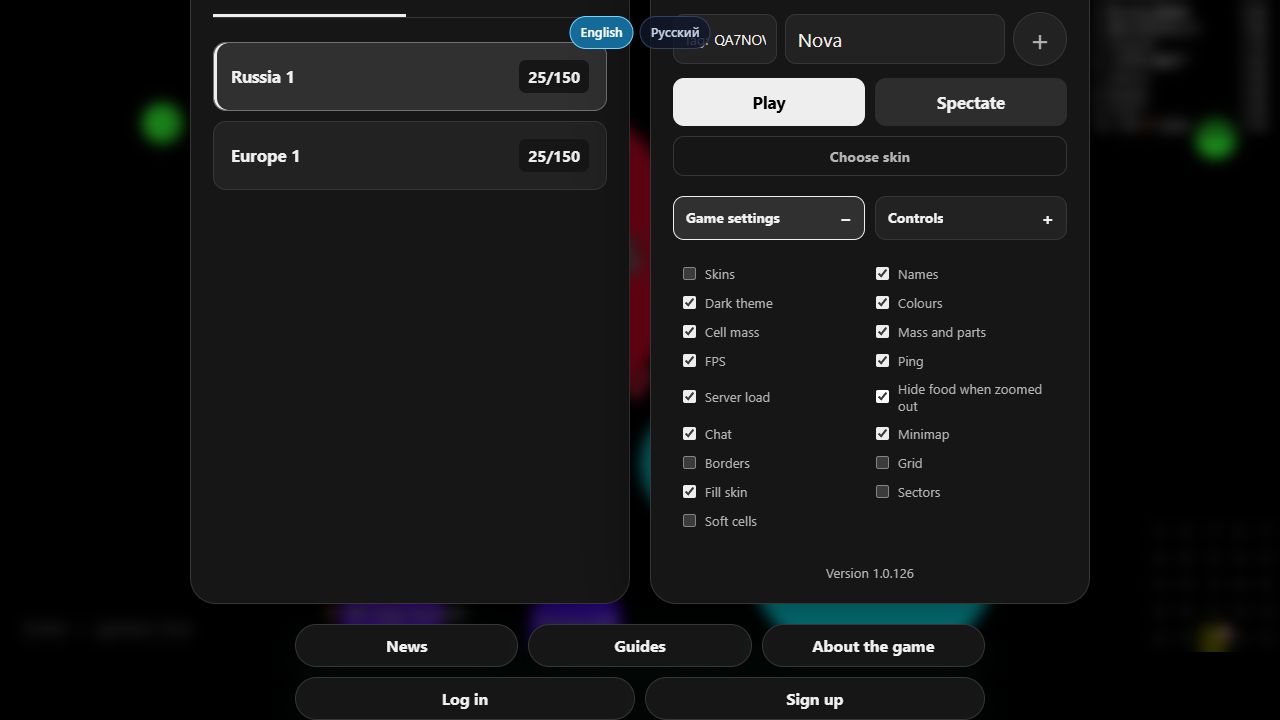
This is a starting preset rather than a reason to disable every feature. Names, mass labels and the minimap help you navigate and time attacks. Remove decoration first, then decide whether extra smoothness is worth giving up useful information.
Why Agario lags: FPS, ping and server performance
FPS measures how many frames the game displays each second. Low FPS makes movement and camera motion look choppy, often becoming worse around many cells. Ping is the round-trip delay to the server. Connection problems can make your cell respond late or jump to a different position even when the picture is smooth.
Blogar’s Server load counter describes server performance, not your computer’s CPU usage. One counter cannot explain every slowdown: low frame rate and connection delays can happen together.
If FPS is fine but your cell keeps jumping back, check the connection, background downloads and another available server. A nearby region is a reasonable starting point, but measured ping and stability matter more than its name. The official Miniclip guide to Agar.io lag also distinguishes device, internet and server causes.
Which settings should you disable for higher FPS?
1. Skins
Uncheck Skins to stop drawing skin images on cells. In a crowded arena, this removes some graphics work. It does not delete a skin you uploaded in your account: it changes how skins are displayed in your client.
Once skins are off, disabling Fill skin separately is unlikely to provide another gain: that effect belongs to skin rendering. Compare the game with and without skin images first.
2. Grid and sectors
Grid adds background lines, while Sectors adds map markings. Disabling them simplifies the background. It does not remove the arena’s actual boundaries, change your cell’s speed or alter collision rules.
Do not expect a huge improvement from the grid alone. Its effect may be noticeable on one device and insignificant next to heavier work on another. Test it with the quick preset, then compare individual options.
3. Soft cells
Soft cells gives cells a moving, deforming outline. Turning it off skips the visual calculations associated with that effect. This is a useful early option to test if performance drops around many cells and fragments.
The change is visual. Server rules for mass, eating, splitting and virus interactions continue to work the same way.
4. Food when zoomed out
Enable Hide food when zoomed out. Once the camera is sufficiently far out, the client stops drawing small food pellets. A wide view can contain many objects, making this worth testing when playing with a large mass.
The food is not removed from the server. This setting only changes visibility and activates with a distant camera. Do not expect food to disappear permanently while playing zoomed in.
5. Names, mass and extra interface elements
If the main preset is not enough, try disabling Names and Cell mass: many text labels also need to be drawn. The trade-off is significant because recognising players and judging cell sizes becomes harder. In Blogar, disabling names also hides player names in the leaderboard.
Mass and parts is a separate display of your own status, so you can keep it enabled. Turn off chat or the minimap if you do not use them, and compare the result. Dark theme changes the appearance but does not guarantee higher FPS.
How to reduce browser slowdowns
Close unnecessary tabs and check extensions
Update your browser and close unused tabs and apps, especially videos, streams and other games. Temporarily disable optional extensions and compare performance. If you cannot tell what is consuming resources, use the browser’s task manager. These steps appear in Google’s official guide to making Chrome faster.
Avoid ending unfamiliar system processes at random. For this test, close the apps and tabs you recognise and do not currently need.
Check power-saving settings
On a laptop, compare playing on battery with playing while plugged in. In desktop Chrome, check Performance settings: Google notes that Energy Saver can affect gaming. If needed, compare the game with that mode disabled. This applies to desktop settings; mobile browsers offer different controls. See Chrome’s performance settings guide.
Do not disable hardware acceleration blindly
Hardware acceleration lets the browser use the GPU for graphics. Start with the browser’s recommended settings. If you get flickering, freezes or unusual frame drops, compare acceleration on and off, restarting the browser after the change. Disabling it is not a universal FPS fix, as explained by Firefox’s performance settings and Mozilla’s troubleshooting instructions.
If slowdowns persist, compare current versions of two browsers on the same device using the same game settings. You can also test a smaller browser window: drawing a smaller area may help. Browser page zoom and moving the game camera farther out are different changes and do not guarantee the same result.
How to increase Agario FPS on a phone
In Blogar’s browser version, begin with the same preset: disable skins, the grid, sectors and soft cells. Enable food hiding when zoomed out. If labels still seem too demanding for the device, test names and mass separately while considering the information you lose.
Close apps you do not need and compare playing without screen recording. If the game starts smoothly but becomes choppy after a few minutes, check whether the phone is hot. Move it out of direct sunlight and let it cool. Apple explicitly lists reduced frame rates as a possible response to overheating in its iPhone and iPad temperature guidance.
Use your device’s own controls when checking power saving. Do not expect desktop Chrome’s menu names to match a phone: the interfaces differ. This guide covers playing in a browser rather than the settings of the separate Agar.io mobile app.
How to tell whether your settings helped
- Note your starting values. Enable FPS and Ping. Measure active gameplay rather than a menu or a background tab.
- Compare similar conditions. Keep the same server, a similar camera zoom and a similar number of visible objects. An empty arena and a crowd create different workloads.
- Watch for 30–60 seconds. Repeated drops and overall smoothness matter more than one high reading.
- Change one option at a time. After trying the quick preset, restore features individually to find which ones matter on your device.
Blogar’s counter is a practical frame-rate estimate rather than a laboratory benchmark. Do not compare a background tab with the active game: browsers typically pause animation-frame callbacks in background tabs. Their frequency is also usually related to the display’s refresh rate, as described in MDN’s requestAnimationFrame documentation. Around 60 FPS on a 60 Hz display is therefore not automatically a fault.
Frequently asked questions about Agario FPS
How do I make Agario run better on a low-end PC?
Start by disabling skins, soft cells, the grid and sectors. Enable food hiding when zoomed out, close unnecessary tabs and compare FPS under similar conditions. If the image is smooth but controls respond late, investigate the connection and server.
Will faster internet increase FPS?
A faster internet plan does not itself make your device draw frames faster. It may address a specific network limitation, but low FPS still needs separate checks of graphics settings, the browser and your device.
Should I clear the cache and delete all cookies?
That is not the first step for frame-rate drops. Removing site data can reset your login and saved settings. Check graphics and background apps first; consider clearing data when there is a specific problem loading the page or its resources.
Can I get 144 or 240 FPS?
It depends on the display, browser, device and current workload. Those numbers cannot be promised to every player. Stable movement without sharp drops is a more useful target.
Do I need an Agar.io FPS booster?
No extra extensions are needed for these steps: the controls are already available in the game and browser. Test them first so you can identify which change actually makes a difference.
Once the game is smoother, move on to practice: learn how to popsplit and how red viruses work. Find more instructions in Guides.